
Documents›Digital Signage
Digital Signage
The most powerful app in the suite — screens, playlists, a full design canvas, and live show control, all from one dashboard.
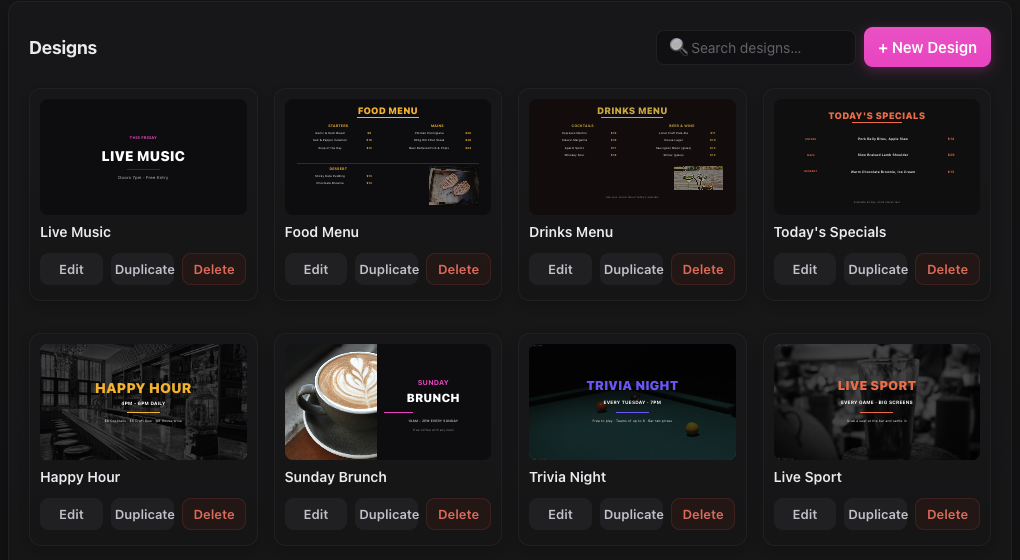
Get Content on Screen
The loop you'll use for almost everything.
4 steps
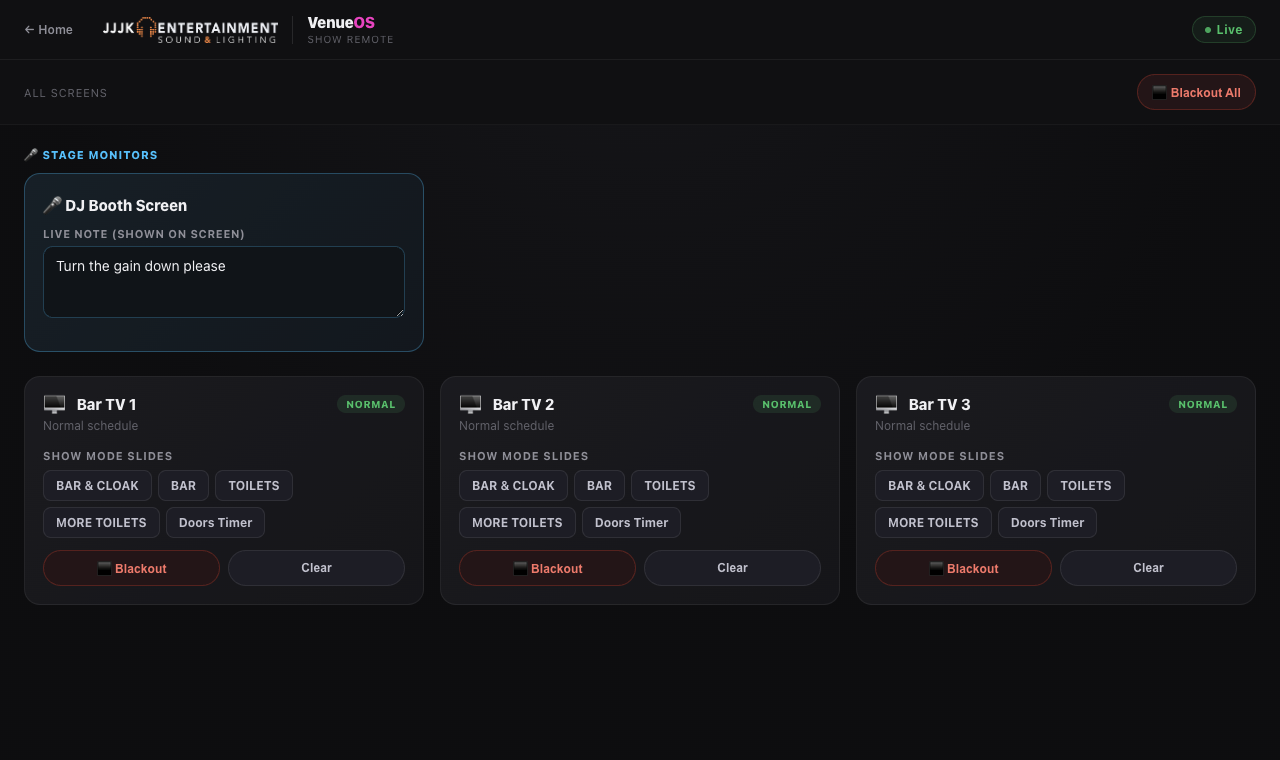
Show Mode
For nights where something needs to change on the fly.
6 steps

Overlays
Your logo, a clock or a news ticker on top of every slide in a playlist.
6 steps
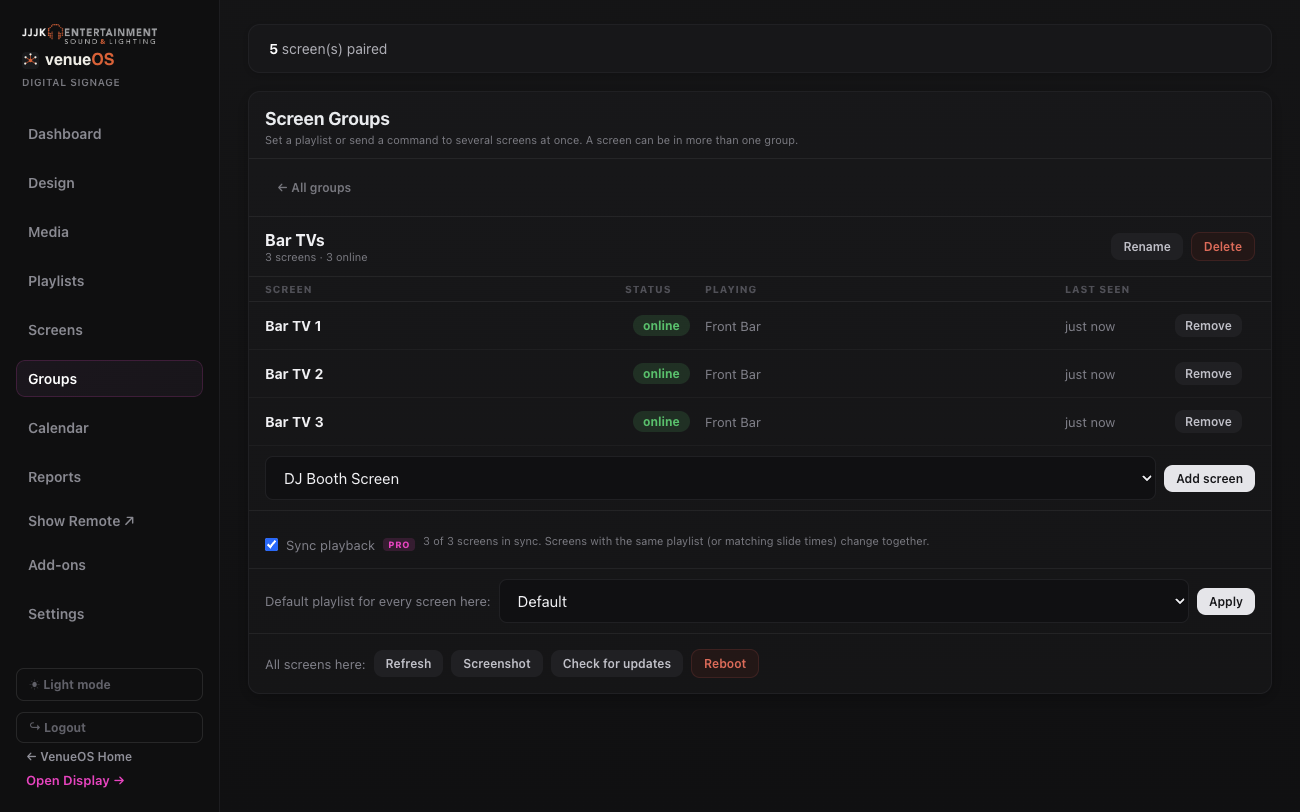
Synced Screens
Make a row of screens change slide at exactly the same moment.
5 steps
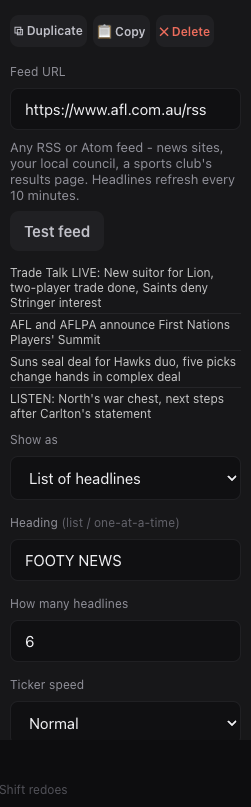
News Feeds
Live headlines from any RSS feed, updating themselves.
5 steps
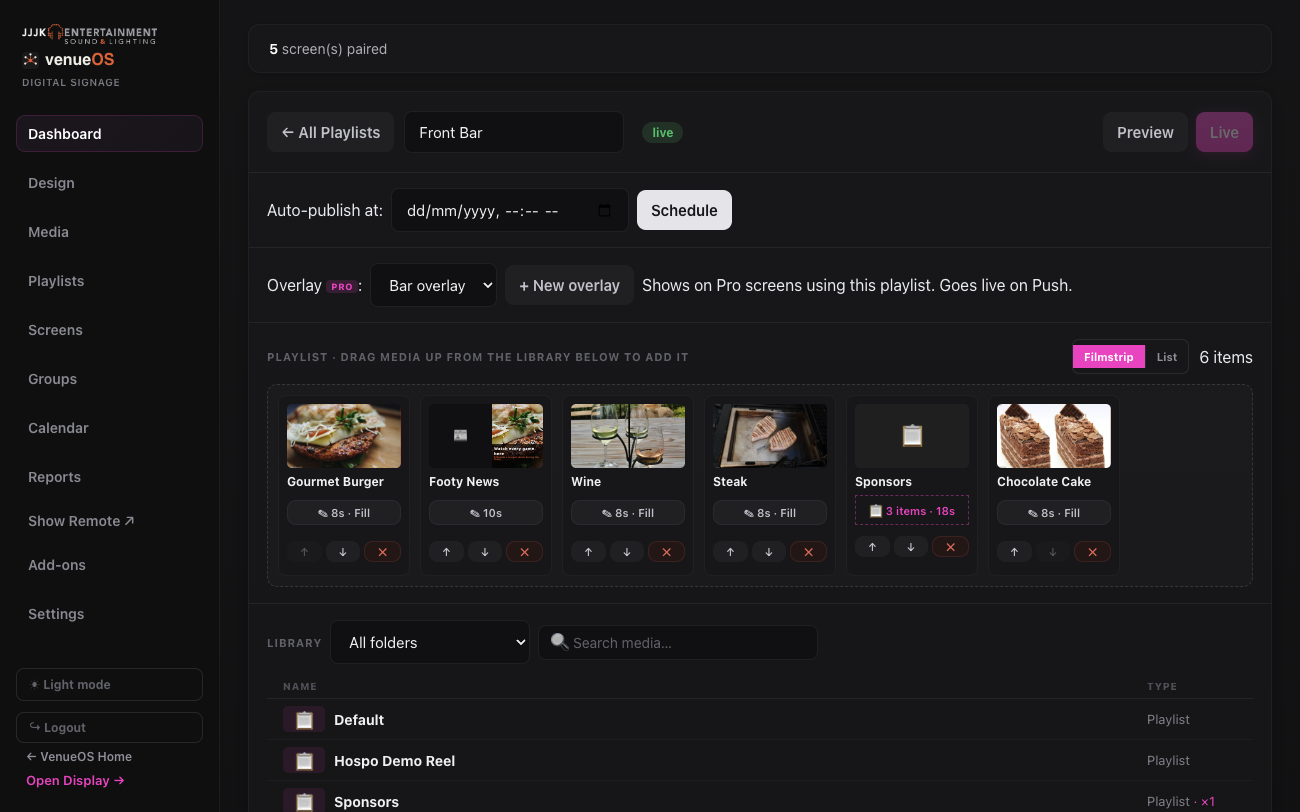
Playlists Inside Playlists
Keep shared content like sponsors in one playlist and drop it into others.
5 steps
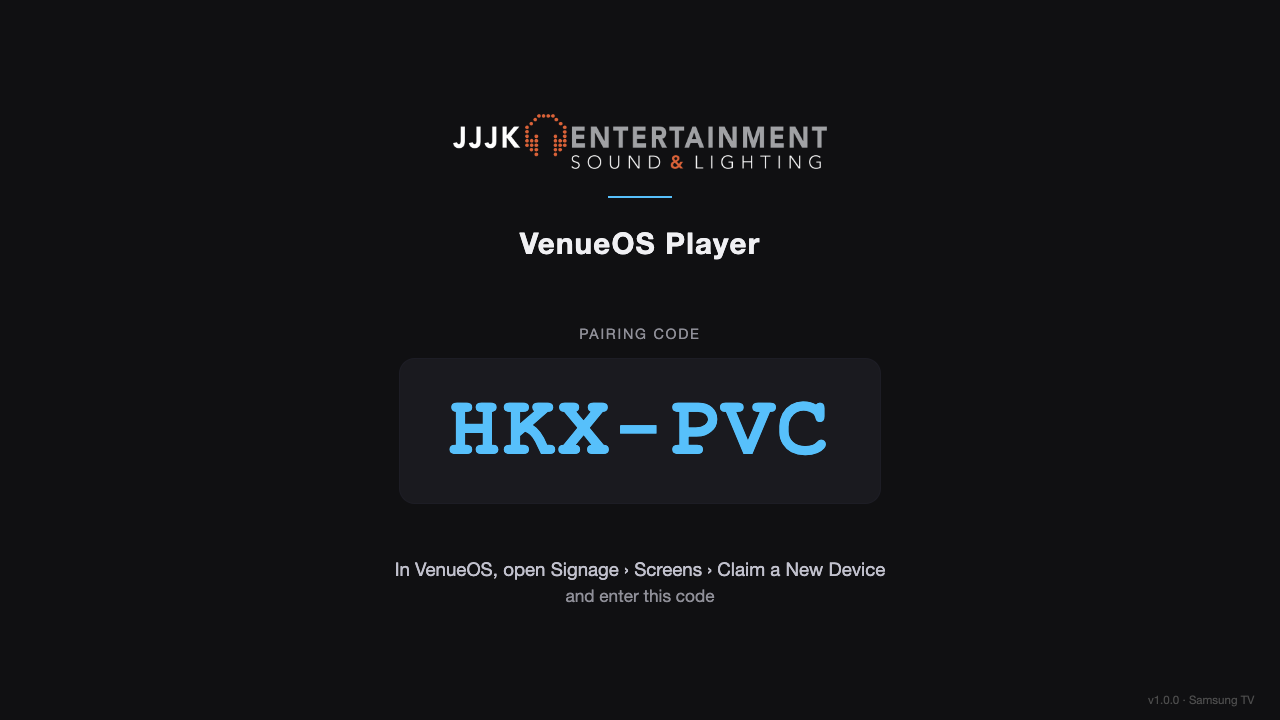
Screen Players
What can run VenueOS signage, and keeping Android displays up to date.
5 steps
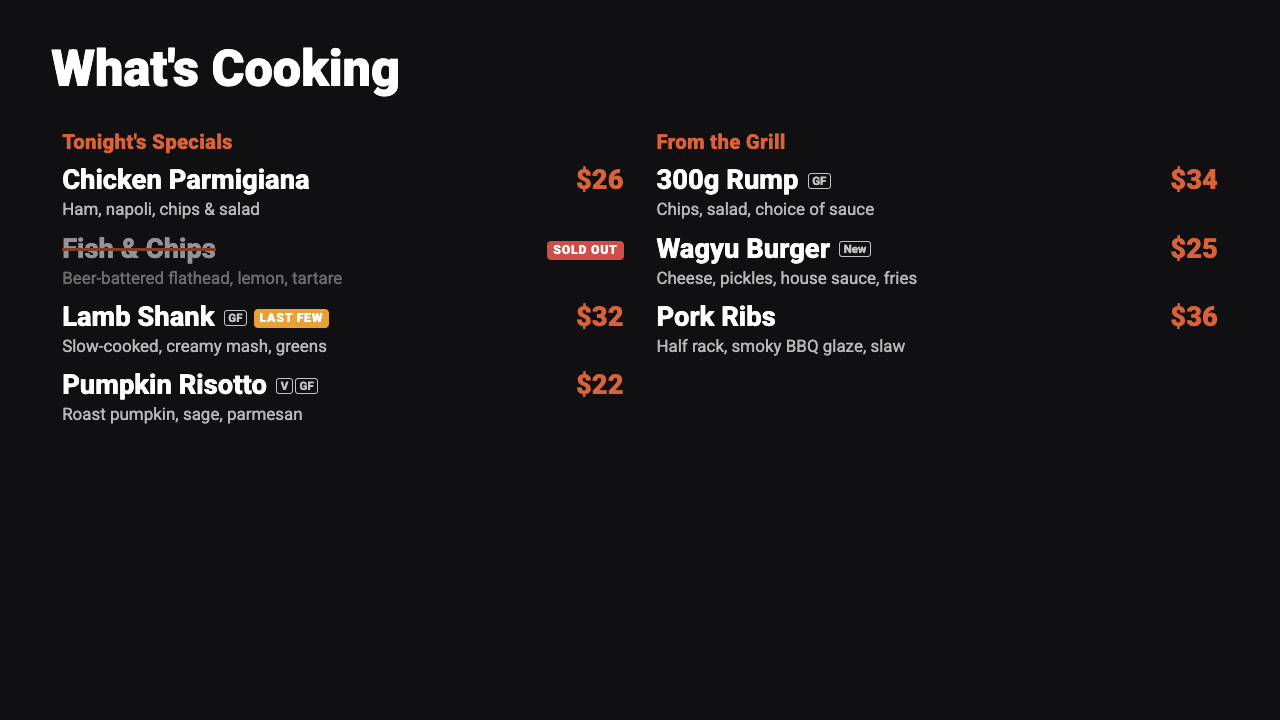
Live Menu
Menu boards your staff update from an iPad - mark a special sold out and every screen shows it within seconds.
6 steps
Good to know
- The one thing everyone forgets: adding something to a playlist only stages a draft — it does nothing on screen until you hit Push.
- Gig Guide needs a tickbox on the other end: the Gig Guide widget only shows shows that have "Share with Signage" ticked in Gig Hub — nothing appears until that's turned on per show.
- Zone layouts add extra playlists: turning on a screen's Layout (Bottom Strip, Corner Box, Sidebar) gives each zone its own independent playlist alongside the main one.
- Not every venue sees every tab: Reports, Show Remote, and the Sponsor submission link are add-ons switched on per venue — if a tab's missing, it's off for this venue, not broken.
- Pro Screen features: overlays and synced screens only run on Pro Screens - Standard screens just play the playlist as normal.
- New features need one Refresh: a screen that was already running picks up overlays and sync after one Refresh from the Screens or Groups tab.
Where to find it
/signage/controlDesign, Playlists, Screens, Groups, Settings/signage/showShow Remote — blackout & live overrides/signage/sponsorPublic link for sponsors to submit their own ad (if enabled)Still stuck?Send us a ticket and the JJJK team will get back to you.
Submit a ticket