
Screens
Screen Players
What can run VenueOS signage, and keeping Android displays up to date.
Android displays and TVs
Install the VenueOS Player app. The screen shows a pairing code - enter it in
Screens→Claim a New Device.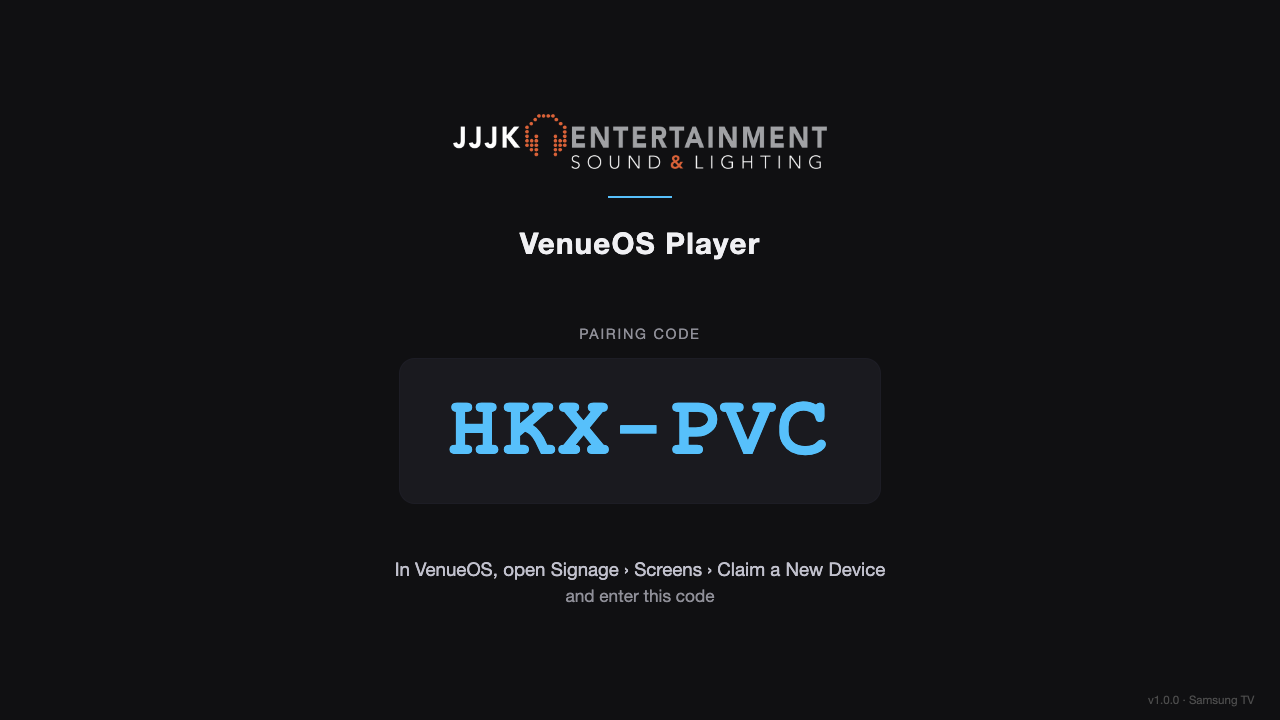
A new screen showing its pairing code. Raspberry Pi players
Supplied set up by JJJK - plug into HDMI and power, then pair with the code on screen.
Windows PCs and Macs
Install VenueOS Player for Windows or Mac (ask JJJK for the link), pair with the code. It starts with the computer and runs full screen;
Ctrl+Shift+Q(Cmd+Shift+Qon Mac) quits.Update an Android display
On the screen's card,
Check for Update. It downloads the latest player; most displays then show anInstallprompt that someone at the venue taps with the remote.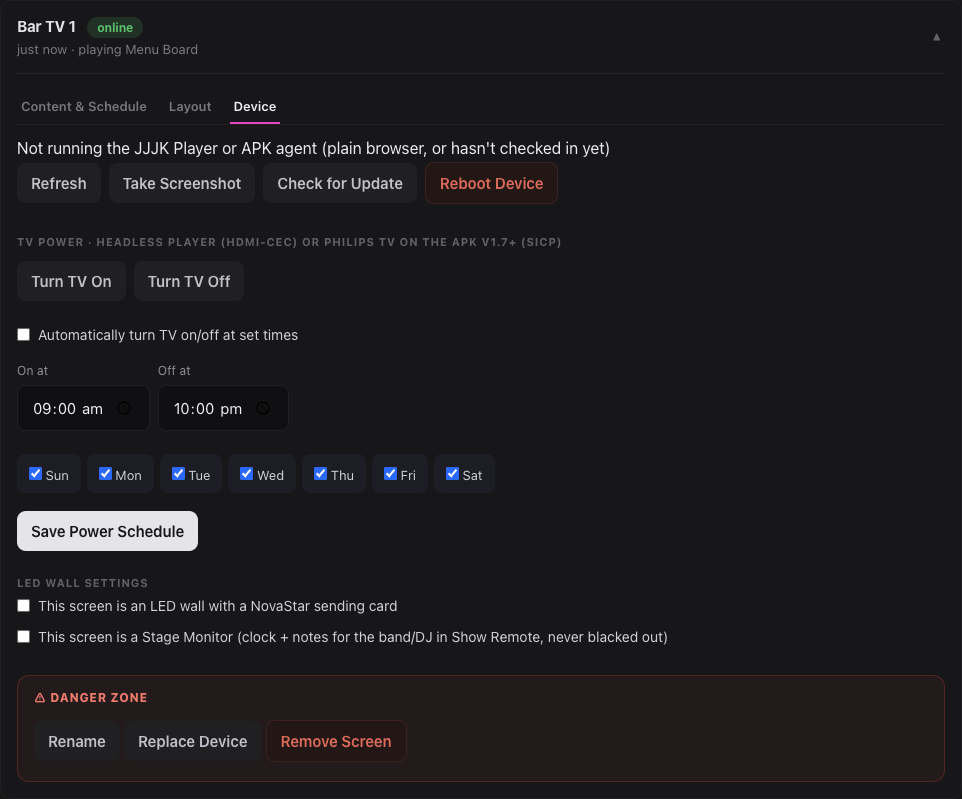
A screen's Device tab, with Check for Update. Check it worked
The screen restarts its player on the new version within a minute and carries on playing - no re-pairing.
Good to know: Updates only ever happen when someone presses Check for Update - never automatically. Displays on a player older than 1.9.0 need a one-off manual install by JJJK first.
Still stuck?Send us a ticket and the JJJK team will get back to you.
Submit a ticket