
Get Content on Screen
The loop you'll use for almost everything.
Design it
In
Design, hit+ New Design, pick a template or start blank, then drag on elements — text, image, clock, weather, QR code, countdown, YouTube, a Google Sheet, or the Gig Guide widget. Save.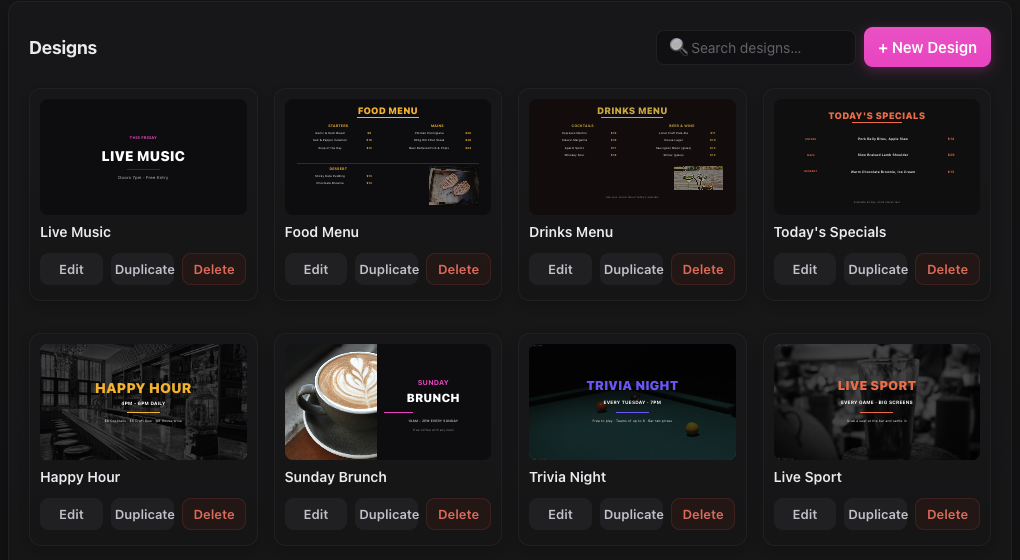
The Design tab - start from a template or a blank canvas. Build a Playlist
In
Playlists,+ Add Mediapulls from your whole Media library — including the design you just saved — into an ordered list. Click any thumbnail in the playlist to preview it full size, exactly as it'll look on screen — same as clicking one inMedia.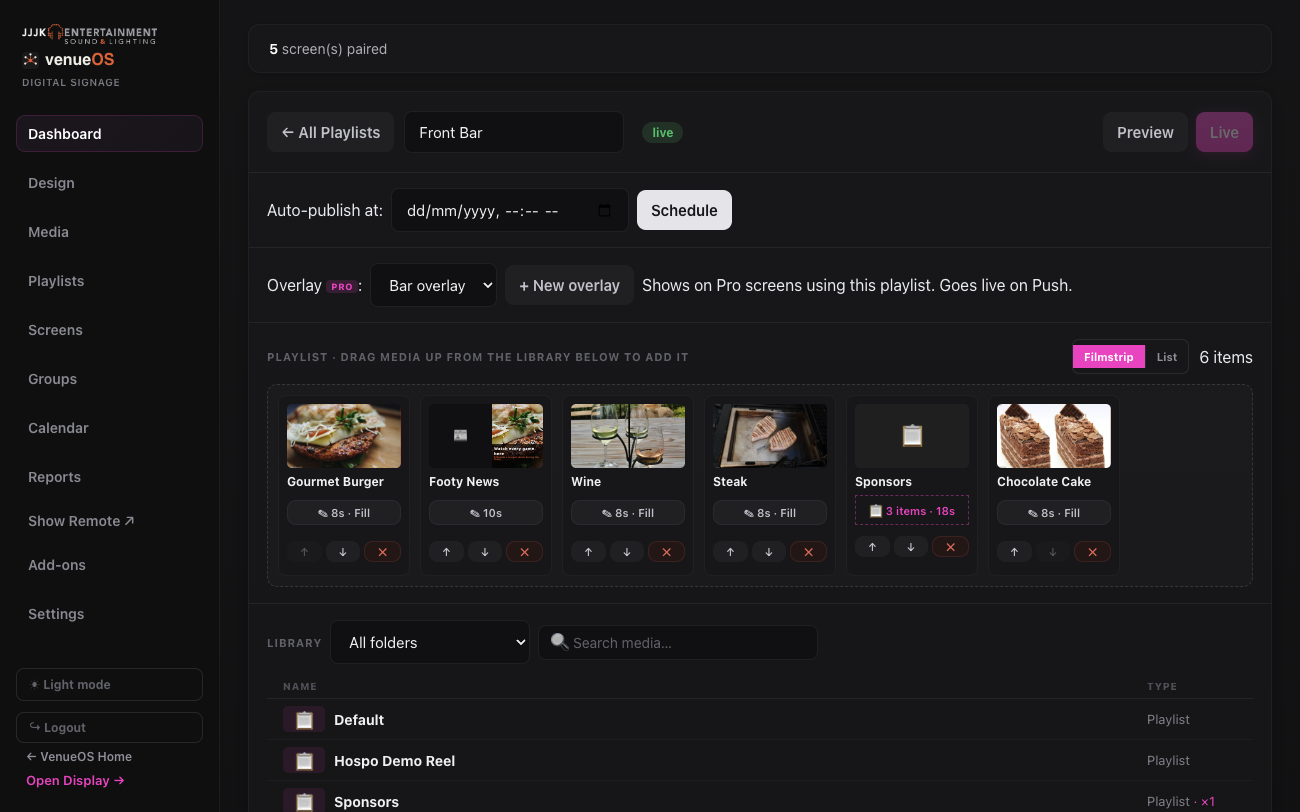
A playlist being built in the playlist editor. Push it live
Nothing reaches a screen until you hit
Pushon that playlist (orPush All). Playlists are clearly badged "unpushed changes" vs "live" so you can tell at a glance.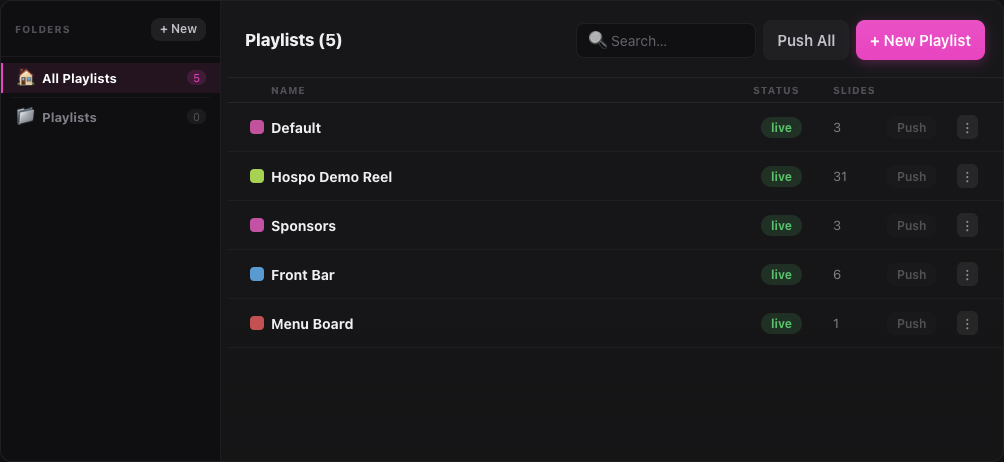
Each playlist shows whether it's live or has unpushed changes. Assign it to a screen
In
Screens, open a paired screen'sContent & Scheduletab and set that playlist as its Default Playlist — or add a day/time schedule if it should only run at certain times. A newly paired screen starts on— No playlist —, and shows "No media playing right now" until you pick one.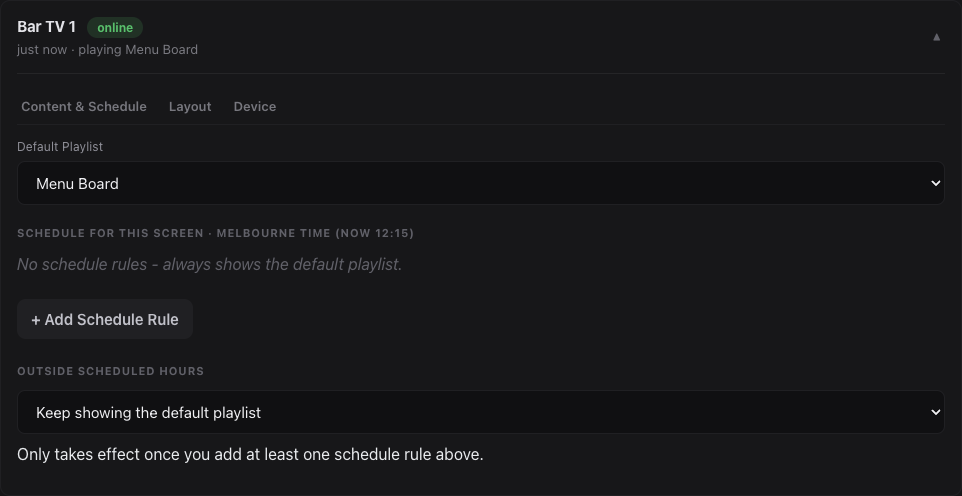
A screen's Content & Schedule tab, with its default playlist.